OneDrive KFM (Known Folder Move) allows you to redirect common Windows folders (Desktop, Documents and Pictures) to the users personal OneDrive. OneDrive Known Folder Move is the modern replacement for the well known folder redirection group policy. The deployment with Microsoft Intune allows you to trigger or automate the OneDrive KFM configuration for your end users.
- Updated on 04.08.2019: Added administrative template configuration
This post is based on a great article from Oliver Kieselbach about Deep dive ADMX ingestion to configure SilentAccountConfig with OneDrive. I used his blog to play around with the admx ingestion.
Prerequisites#
To automatically deploy OneDrive Known Folder Move the following prerequisites must be met:
- OneDrive sync client with build 18.111.0603.0004 or greater
- Azure AD Joined or Hybrid Azure AD Joined Windows 10 Device Running Windows 10 1709 or later
Intune Configuration#
Configure SilentAccountConfig#
Option #1 - ADMX Templates#
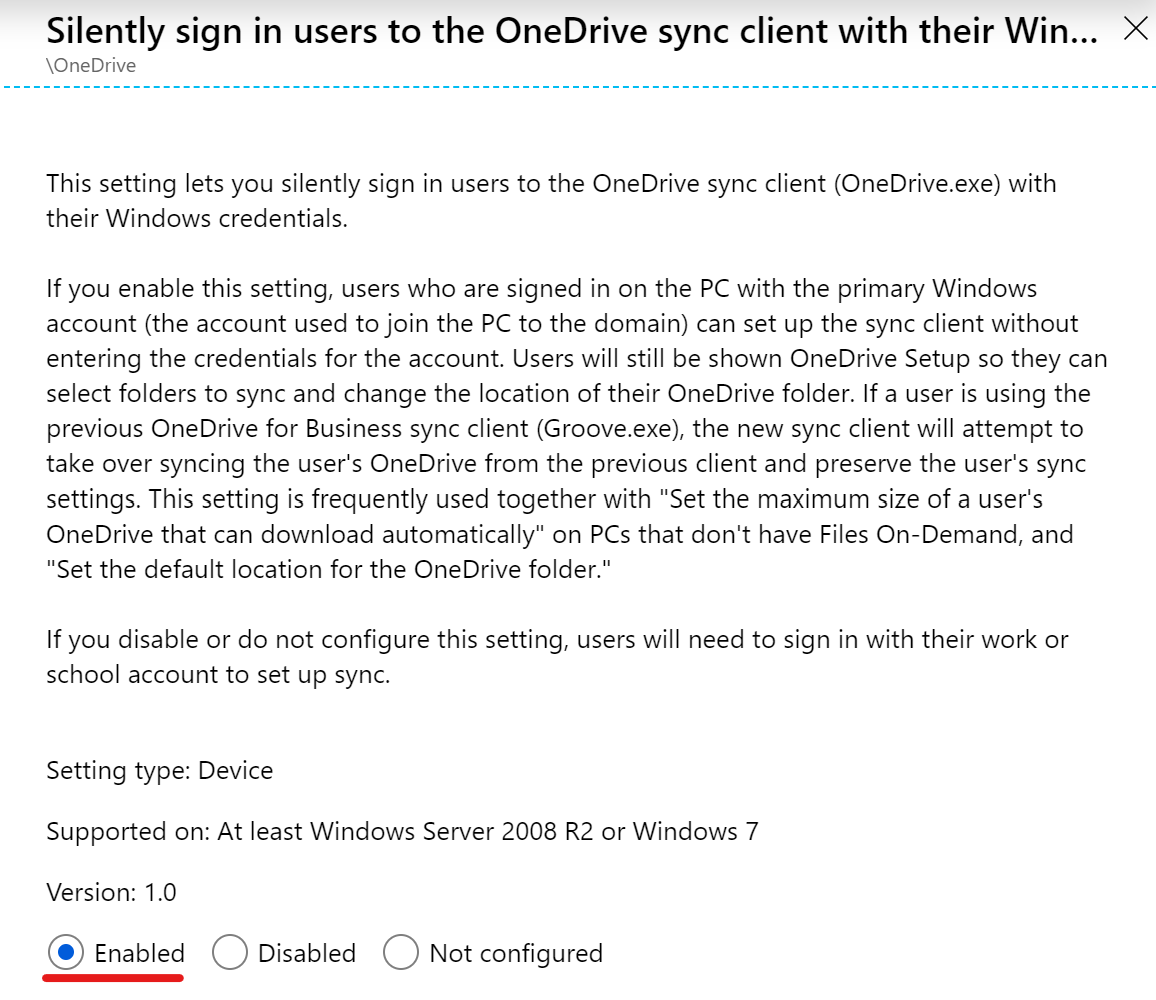
With SilentAccountConfig enabled OneDrive for Business gets automatically configured with the current user account who’s signing in to Windows.
Locate and enable the following policy within your Administrative templates device configuration: “Silently sign in users to the OneDrive sync client with their Windows credentials”:
Option #2 - OMA-URI#
| Name | SilentAccountConfig |
| Description | Silently configure OneDrive using the primary Windows account |
| OMA-URI | ./Device/Vendor/MSFT/Policy/Config/OneDriveNGSC~Policy~OneDriveNGSC/SilentAccountConfig |
| Data type | String |
| Value | <enabled/> |
Gather Tenant ID#
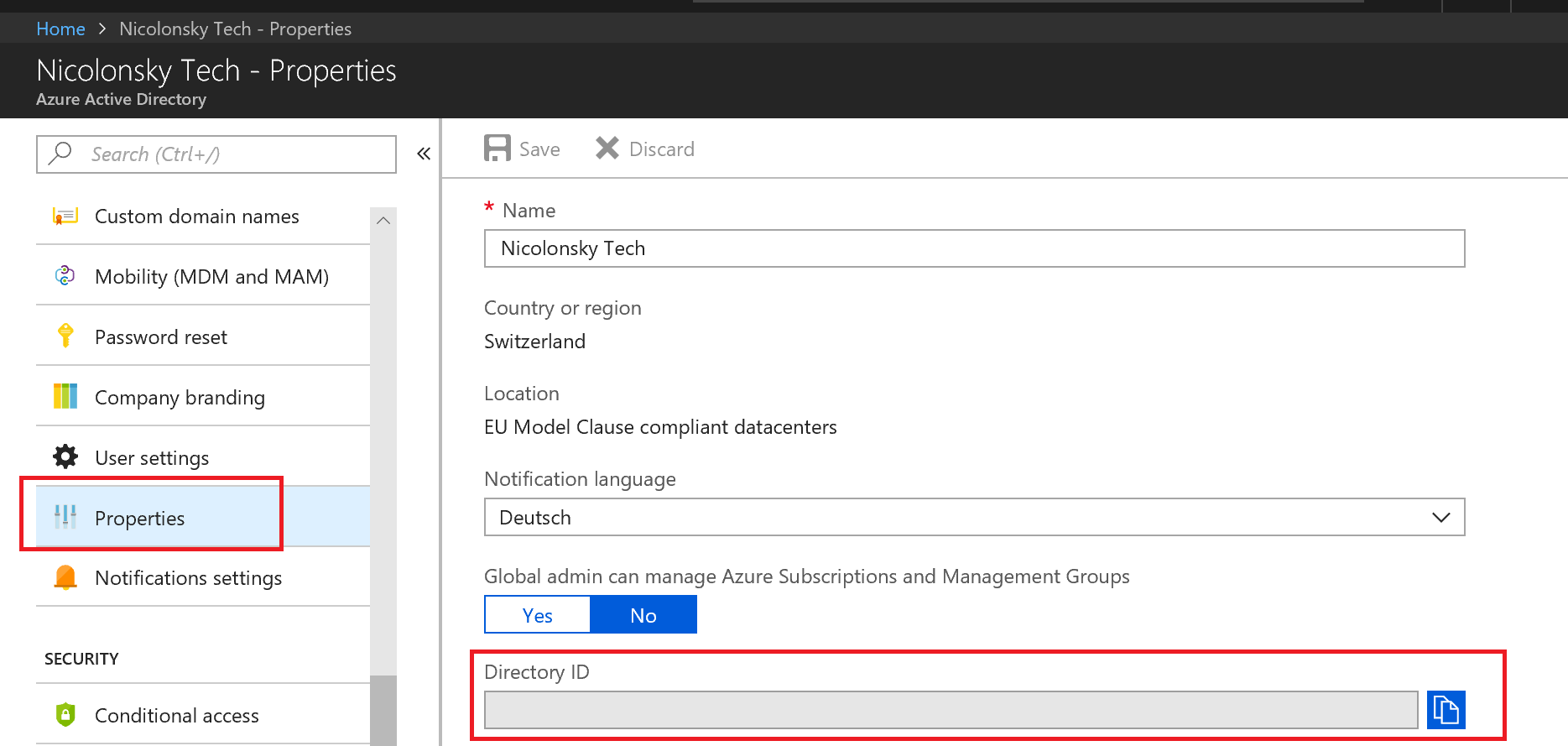
As there are multiple configuration options to enable OneDrive for Business Known Folder Move I describe the option to silently redirect the folders and the option to prompt the user first. For both options we need to acquire the tenant ID of the Azure Active Directory tenant. You can find your tenant ID in the Azure Portal in the Active Directory Application section and then choose Properties / Directory ID.
Enable OneDrive KFM without user consent#
Option #1 - ADMX Templates#
Locate and enable the following policy within your Administrative templates device configuration: “Silently move Windows known folders to OneDrive”: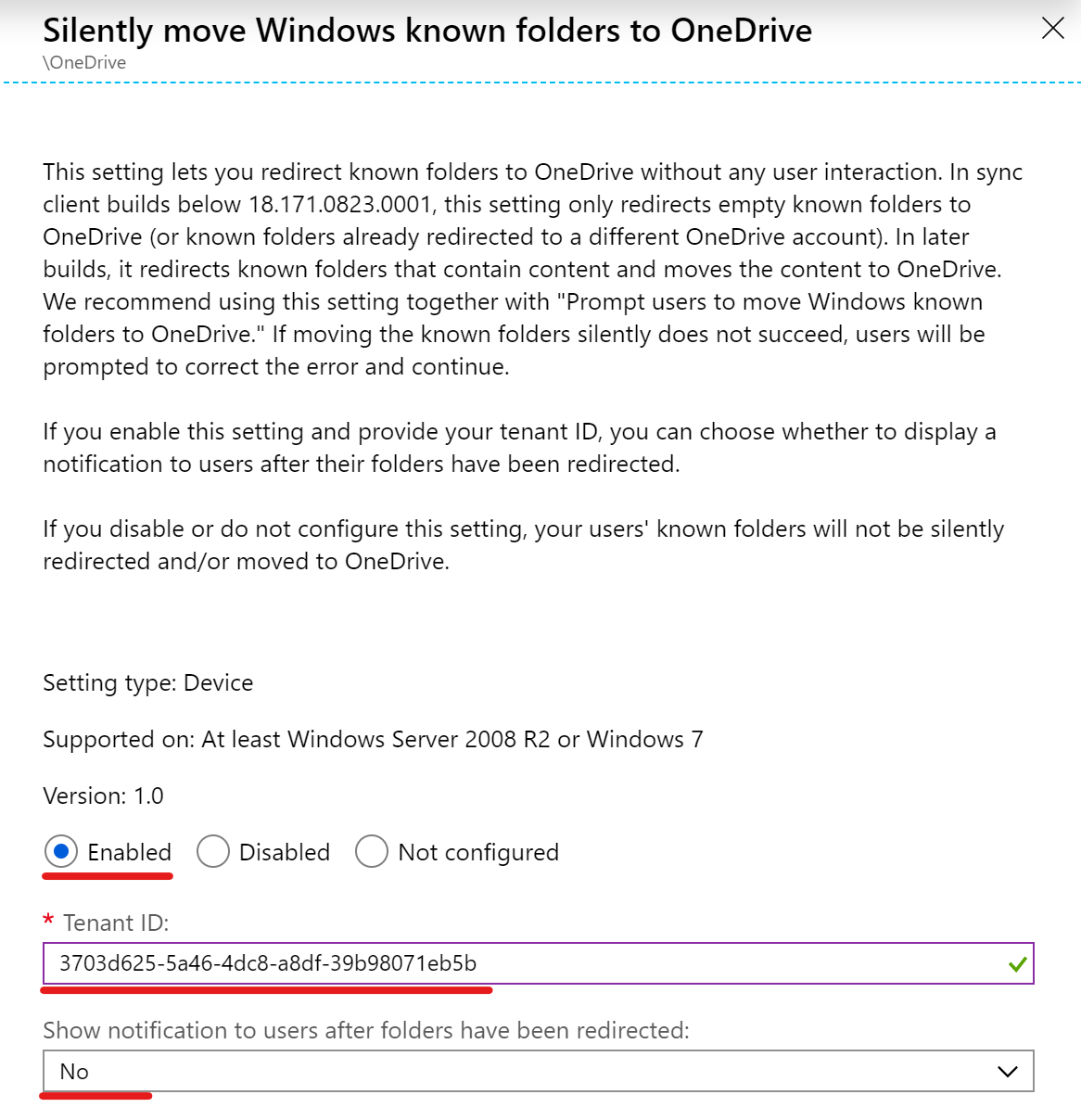
Option #2 - OMA-URI#
| Name | KFMOptInNoWizard |
| Description | Silently redirect Windows known folders to OneDrive |
| OMA-URI | ./Device/Vendor/MSFT/Policy/Config/OneDriveNGSC~Policy~OneDriveNGSC/KFMOptInNoWizard |
| Data type | String |
| Value | <enabled/> <data id="KFMOptInNoWizard_TextBox" value="Insert Your Azure Tenant ID"/> <data id="KFMOptInNoWizard_Dropdown" value="0"/> |
For the the “KFMOptInNoWizard_Dropdown” the following options are available:
- Value of 0 = Don’t display any notification
- Value of 1 = Display a notification after KFM setup has completed
User Experience#
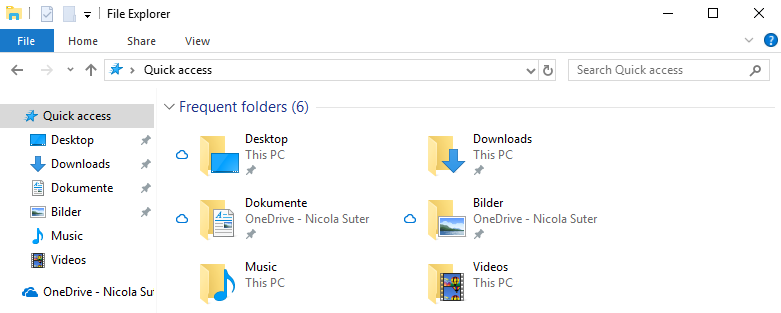
Desktop, Document and Picture folders are now redirected to OneDrive For Business:
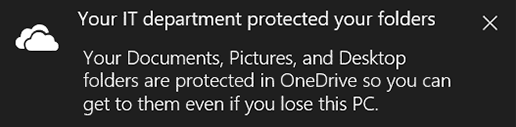
If the notification option is enabled, the user receives a toast notification that his folders are protected and synced with OneDrive:
Enable OneDrive KFM with user consent#
Option #1 - ADMX Templates#
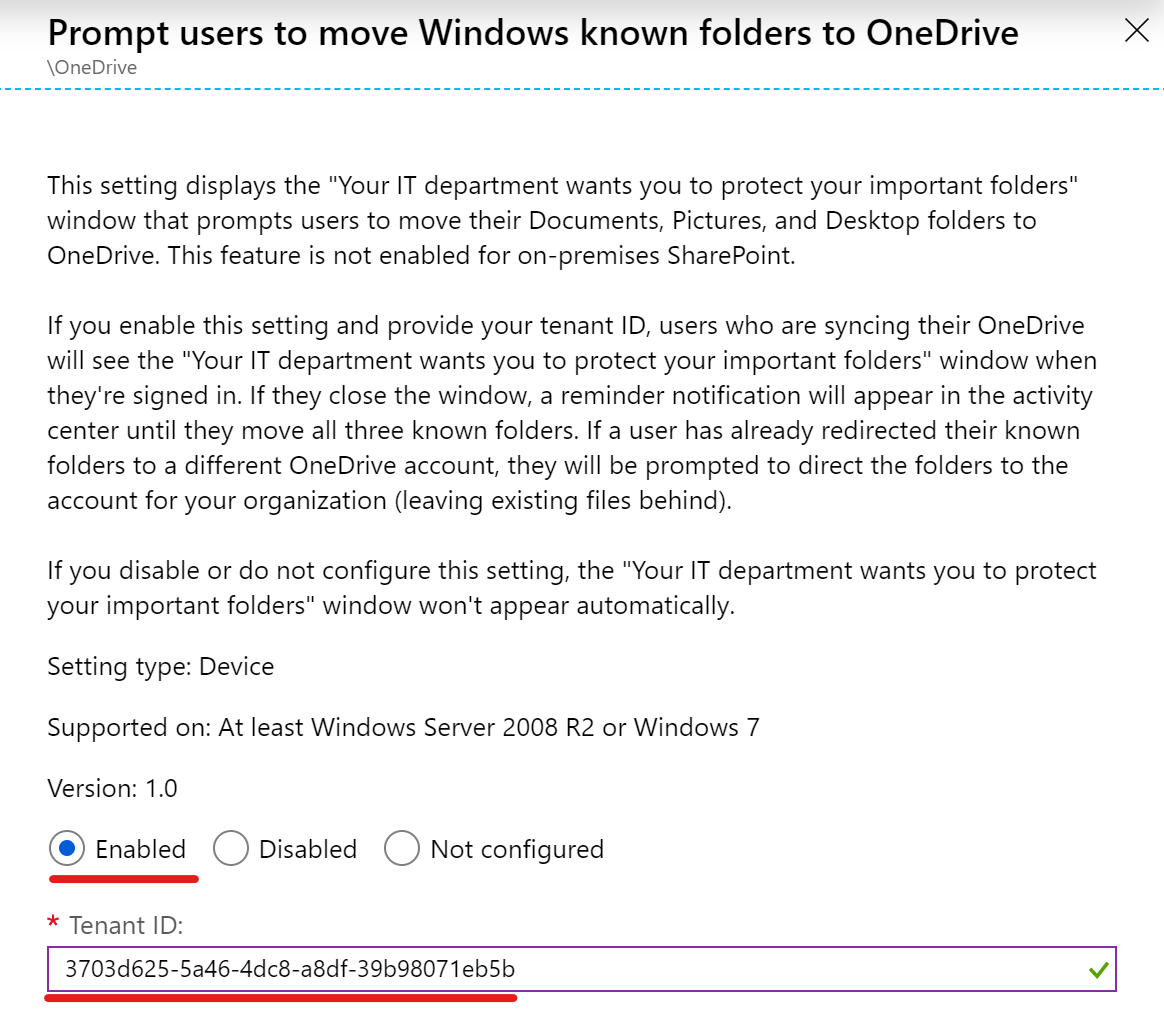
Locate and enable the following policy within your Administrative templates device configuration: “Prompt users to move Windows known folders to OneDrive”:
Option #2 - OMA-URI#
| Name | KFMOptInWithWizard |
| Description | Prompt users to move Windows known folders to OneDrive |
| OMA-URI | ./Device/Vendor/MSFT/Policy/Config/OneDriveNGSC~Policy~OneDriveNGSC/KFMOptInWithWizard |
| Data type | String |
| Value | <enabled/> <data id="KFMOptInWithWizard_TextBox" value="Insert Your Azure Tenant ID"/> |
User Experience#
As soon as the user is automatically signed in to OneDrive he receives a notification to protect his common Windows folders
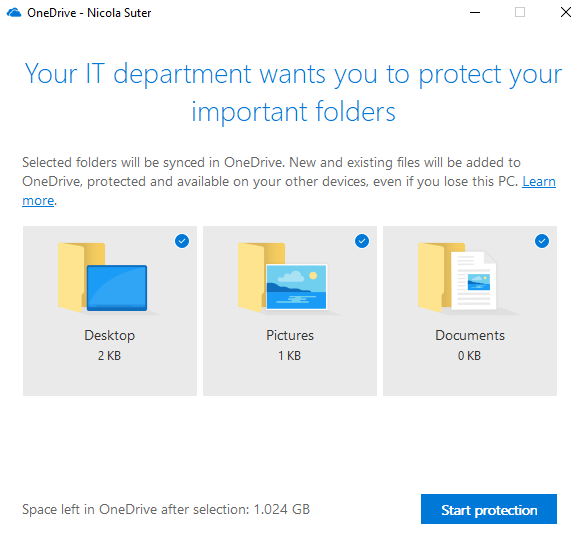
If the user dismisses the notification it will pop up again after a few minutes. This happens until he enables OneDrive KFM protection
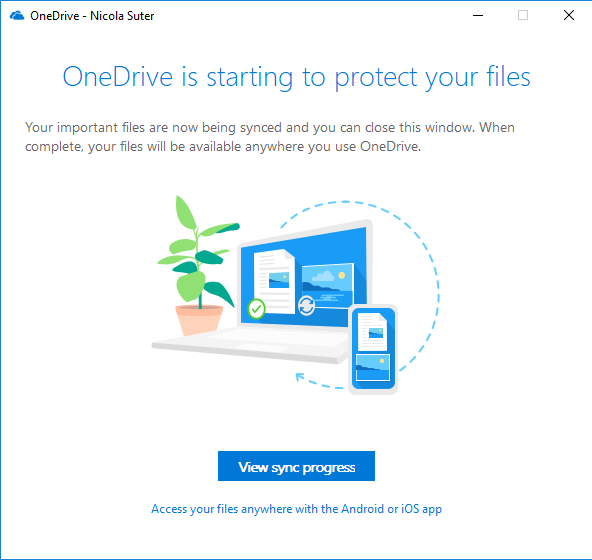
If the user starts the protection a confirmation dialog appears
Prevent users from redirecting their Windows known folders (back) to their PC#
If you want to prevent that users redirect their folders back to a local drive, you can add this option to your existing OneDrive KFM configuration.
Option #1 - ADMX Templates#
Locate and enable the following policy within your Administrative templates device configuration: “Prevent users from redirecting their Windows known folders to their PC”: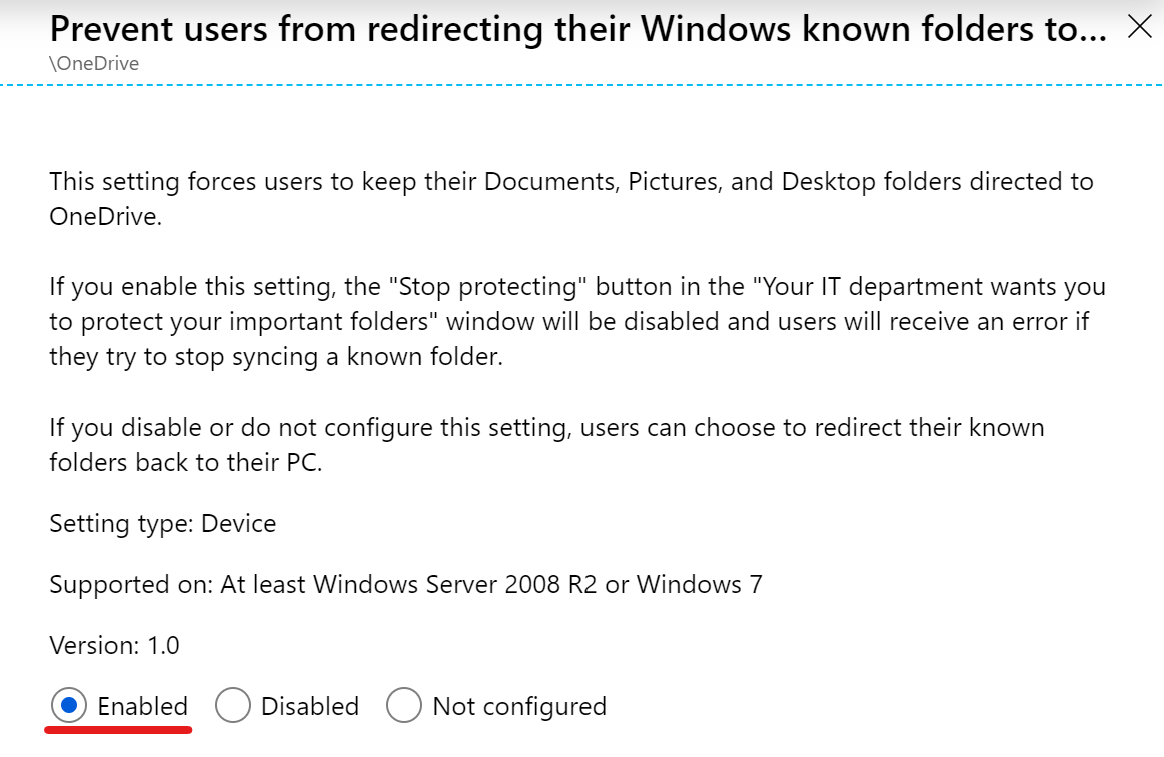
Option #2 - OMA-URI#
| Name | KFMBlockOptOut |
| Description | Prevent users from redirecting their Windows known folders to their PC |
| OMA-URI | ./Device/Vendor/MSFT/Policy/Config/OneDriveNGSC~Policy~OneDriveNGSC/KFMBlockOptOut |
| Data type | String |
| Value | <enabled/> |
User Experience#
- A user accesses the OneDrive Sync Client settings
- The user wants to update his protected folders
- The option to stop folder protection is not shown and a hint shows that the setting is controlled by the organization
Enable Files On Demand#
By default OneDrive Files on Demand is enabled which only downloads files accessed or marked as always available offline.
Option #1 - ADMX Templates#
Locate and enable the following policy within your Administrative templates device configuration: “Use OneDrive Files On-Demand”: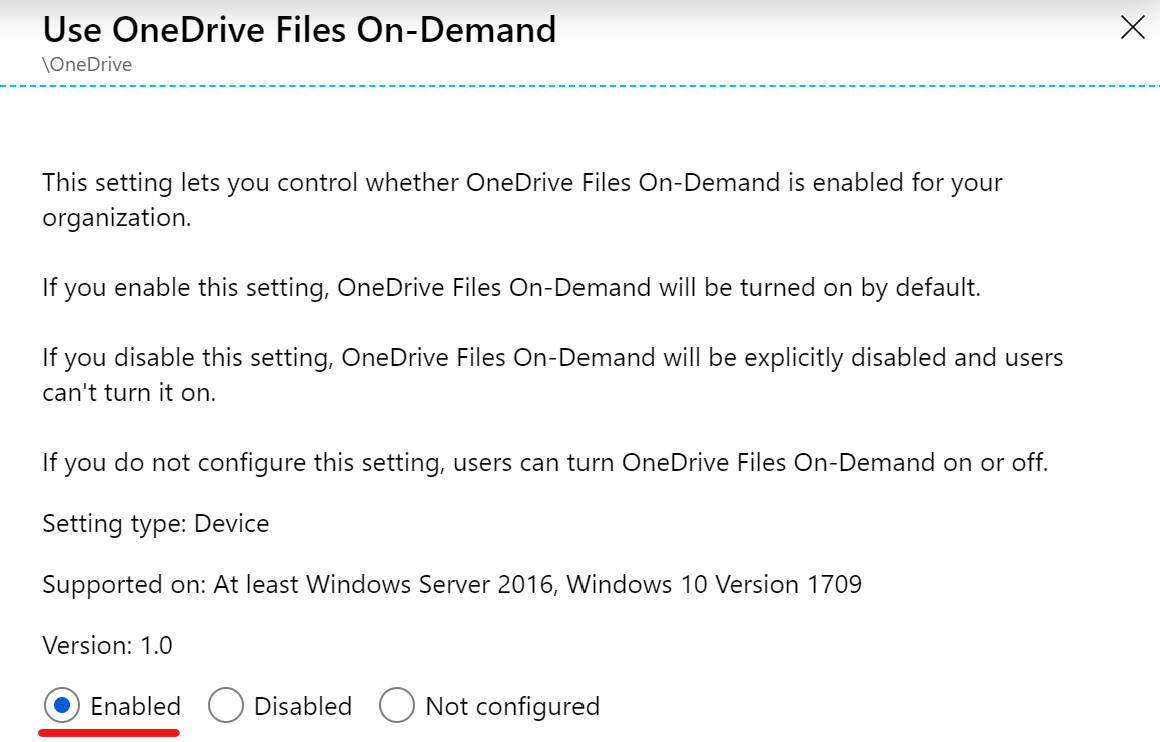
Option #2 - OMA-URI#
| Name | FilesOnDemandEnabled |
| Description | Enable OneDrive Files On-Demand |
| OMA-URI | ./Device/Vendor/MSFT/Policy/Config/OneDriveNGSC~Policy~OneDriveNGSC/FilesOnDemandEnabled |
| Data type | String |
| Value | <enabled/> |
Final words#
Thank you for reading this blogpost. If you have any questions or feedback just let me know. Happy Known-Folder-Moving,Nicola